 COME
COMERead COME Category Labels Before Opening an Experience
Start by identifying whether a visible label is a main category, individual game card or account-menu item. Each leads to a different kind of information. Read the destination's own title and conditions rather than transferring rules from another area. This small orientation step is useful before making a first account or participation decision.
Start with the main category row
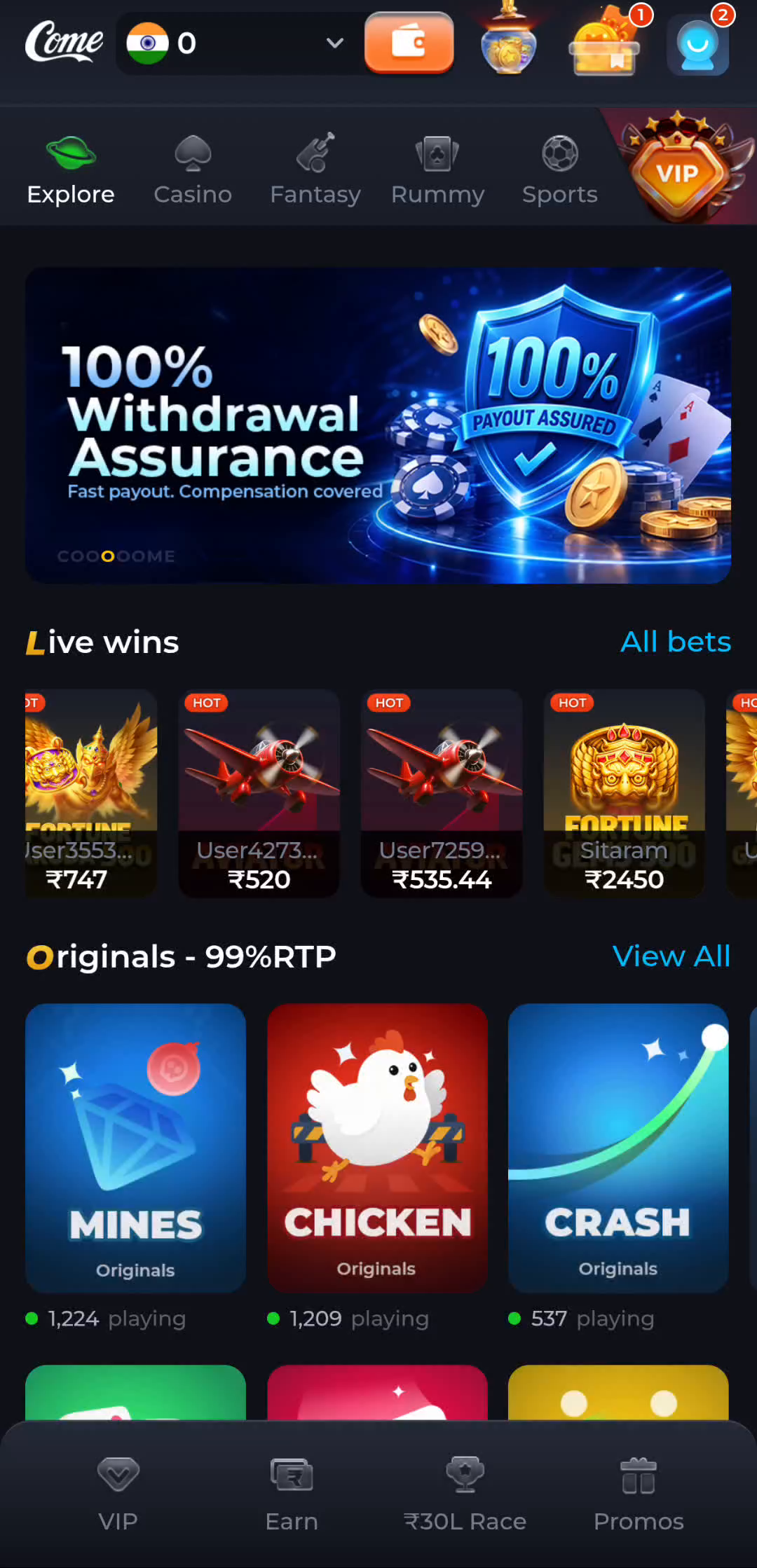
The COME interface shows Explore, Casino, Fantasy, Rummy and Sports as distinct navigation labels. Explore is a starting point for browsing the displayed catalogue. Casino and Rummy identify more specific game areas. Fantasy and Sports point to sports-related sections whose individual screens and rules still need to be read.
The row organises the interface; it is not a guarantee that every named game, event or contest is available to every account at all times. A category label also does not define a game's cost or settlement rules. Open the intended area, read the screen title and then look at the relevant game or event information.
Use the profile menu for your own records
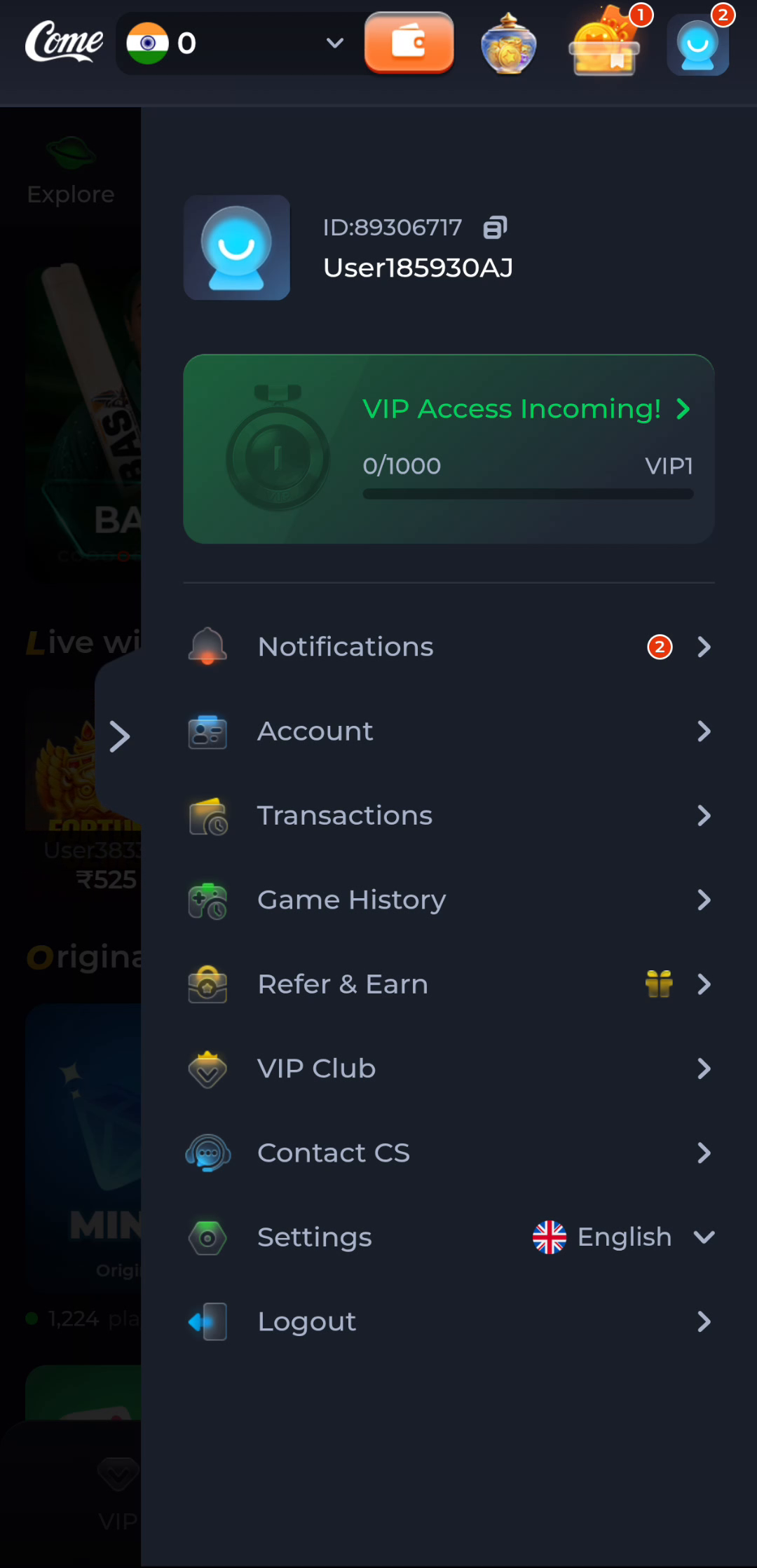
The profile menu is a different navigation layer. It shows Account, Transactions, Game History, Refer & Earn, VIP Club, Contact CS, Settings and Logout. These labels help you choose a task without returning to the download process. Account is the logical starting point for account details; history and transaction labels identify separate record types.
If you are trying to understand an earlier activity, start with the relevant record rather than a promotional panel. Note the status and time shown on that record. A catalogue card advertises an experience; it is not an account receipt.
Learn how panels open and close
Some controls open a panel over the underlying screen rather than a new full page. The visible close or back control helps you return to the prior context. Avoid using a browser's back button repeatedly when you simply want to dismiss an in-app panel, since the browser may leave the product page altogether.
On the settings panel, Language, Check Update and the two audio switches have separate purposes. In Customer Center, a General topic and a payment-related topic address different questions. Choose the narrow topic first so the answer is relevant to your current stage.
Build a small navigation habit
Read the current screen title, choose one task, complete or understand it, then return to the main navigation. This is especially useful on a small screen where panels can cover the categories underneath. When seeking help, name the category or panel rather than saying the button somewhere in the app.
You have completed this orientation when you can locate a browsing category, your account menu and the help entry without treating any of them as another APK download. More detailed rules remain attached to the individual product screen.
A related situation to recognise
For a new game or sports topic, begin with the category row. For an existing account record, begin with the profile menu. For language or sound, begin with Settings. This three-way distinction prevents the same home screen from becoming a maze of repeated clicks. Read the panel title and return to the previous context after each task so the next choice remains deliberate.
Questions about this task
Is Explore a separate application?
It is a navigation label in the COME interface shown here, not evidence of another installer.
Where should a history question start?
Use the relevant history or transaction record in your own account, then the corresponding help topic.
Choose the next step
If this task is complete, continue from the stage you reached. If the symptom remains, keep the exact message and use the related guide only when it addresses that different question.
Compare a COME Update Offer with Your Installed Version